FortiGate Practice Lab — Exercises
tags: fortinet, fortigate, cml, lab, practice created: 2026-05-05
Companion guide for fortigate-practice-lab.yaml. Work through the exercises in order — each builds on the last.
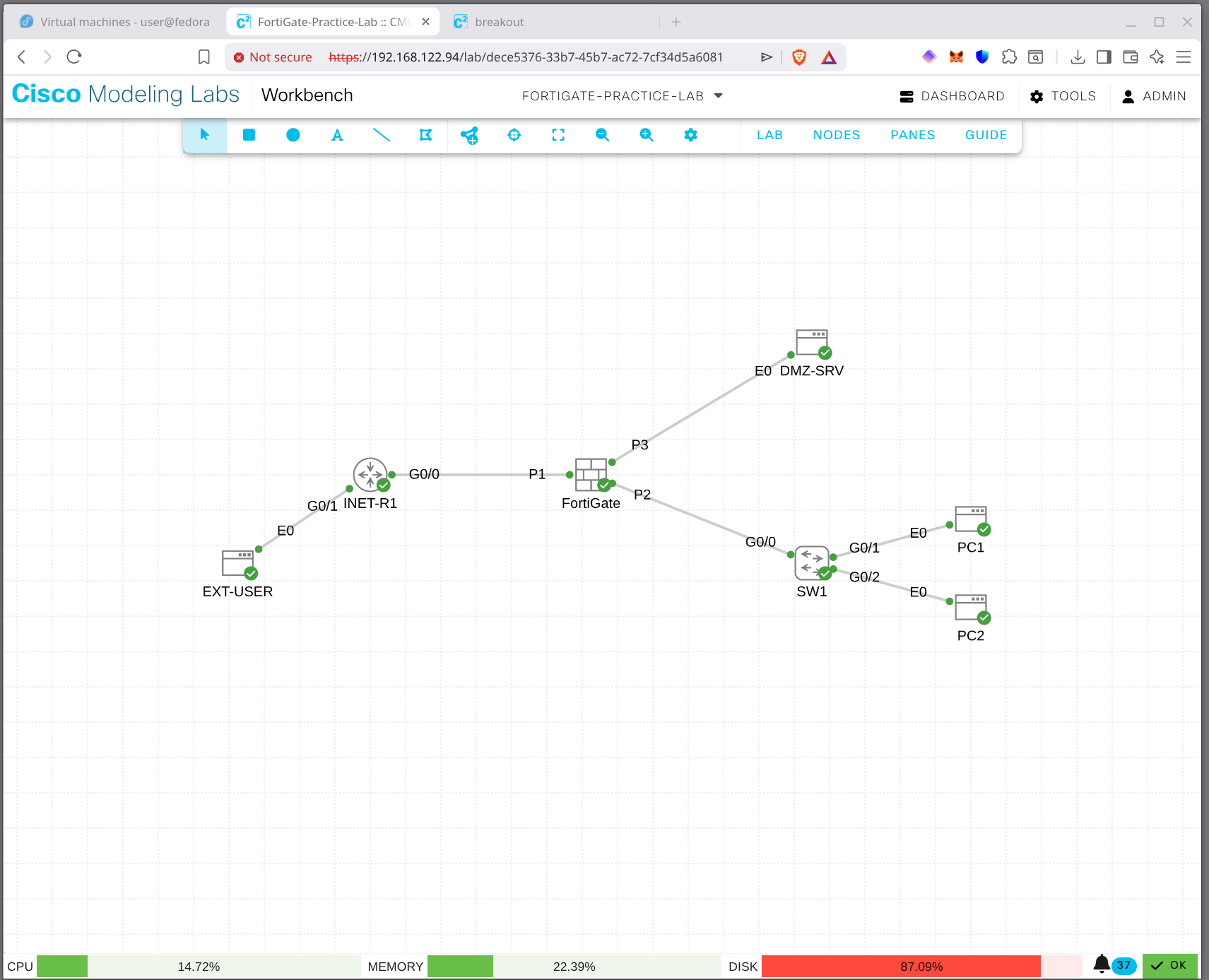
Topology Recap
[ EXT-USER ] --- [ INET-R1 ] --- [ FortiGate ] --- [ SW1 ] --- [ PC1 ]
 198.51.100.10    Lo: 8.8.8.8     port1 outside     192.168.1.x   [ PC2 ]
                  Lo: 1.1.1.1     port2 inside
                                  port3 dmz  --- [ DMZ-SRV ]
172.16.10.10| Interface | Role | IP | Notes |
|---|---|---|---|
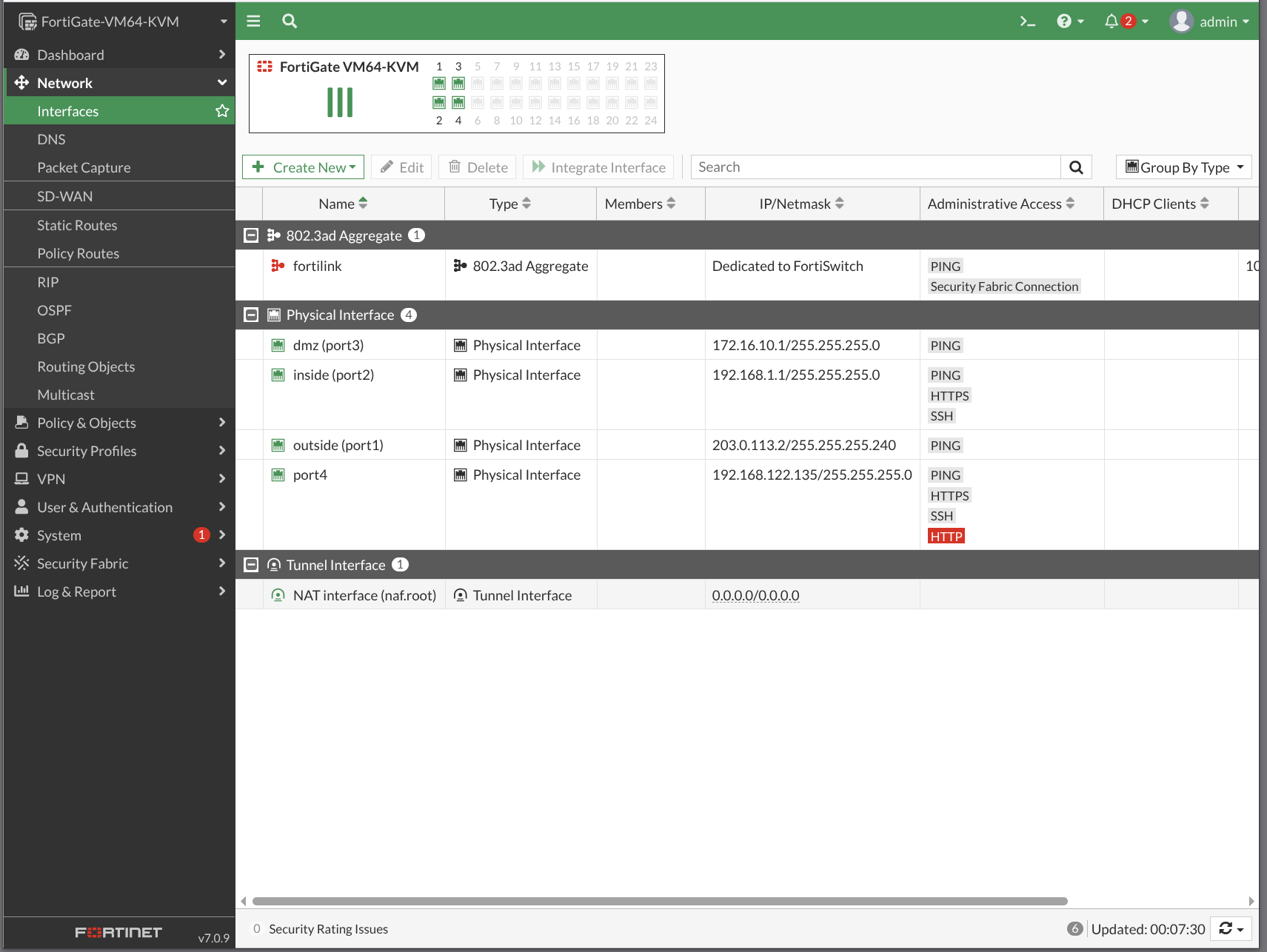
| port1 | outside | 203.0.113.2/28 | gateway 203.0.113.1 |
| port2 | inside | 192.168.1.1/24 | LAN |
| port3 | dmz | 172.16.10.1/24 | DMZ |
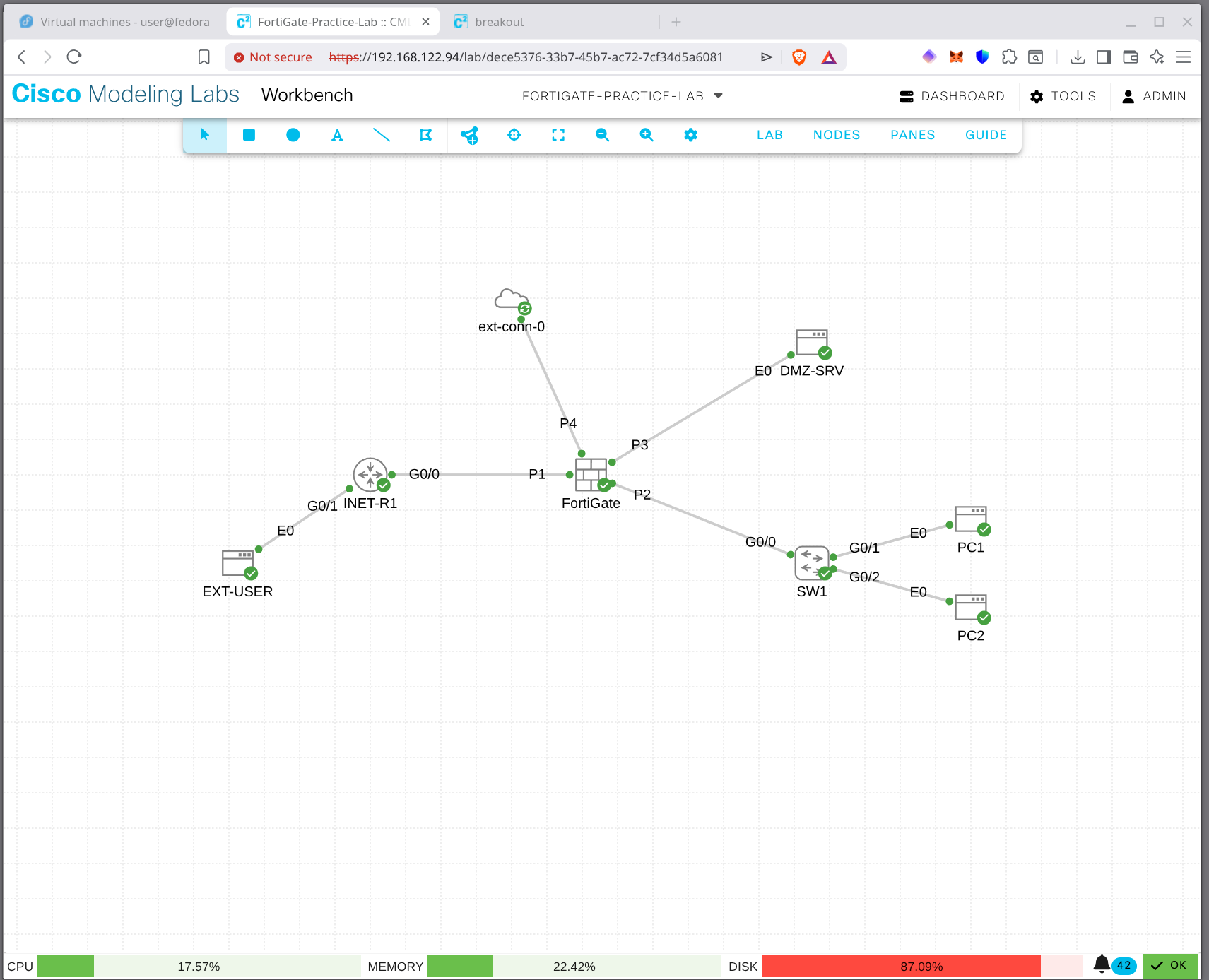
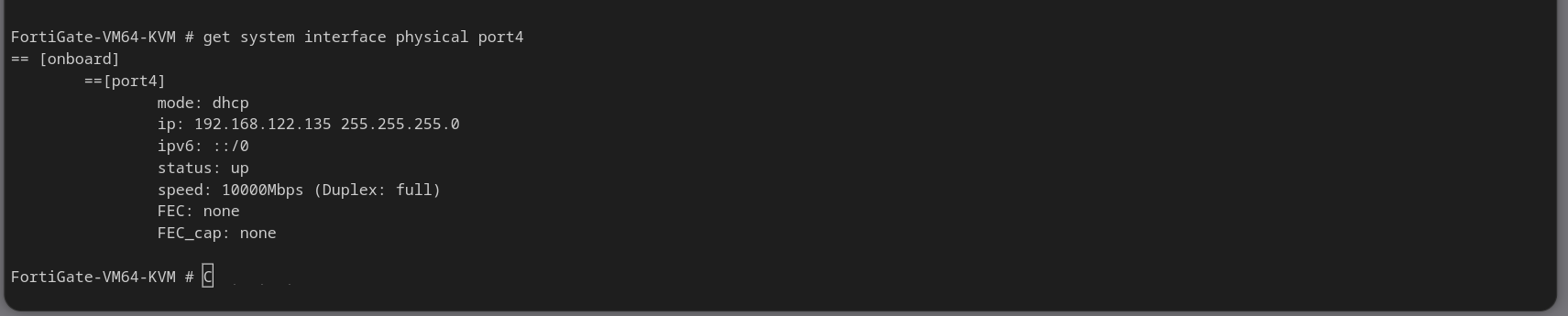
| port4 | unused | — | for stretch exercises |
Credentials: FortiGate admin / blank (set on first login). PCs cisco/cisco.
EX-01 — Initial Access
Console into FortiGate. Set password. Configure hostname and interfaces.
config system global
    set hostname FGT1
end

config system interface
    edit port1
        set mode static
        set ip 203.0.113.2 255.255.255.240
        set allowaccess ping
        set description "outside / WAN"
    next
    edit port2
        set mode static
        set ip 192.168.1.1 255.255.255.0
        set allowaccess ping https ssh http
        set description "inside / LAN"
    next
    edit port3
        set mode static
        set ip 172.16.10.1 255.255.255.0
        set allowaccess ping
        set description "dmz"
    next
end
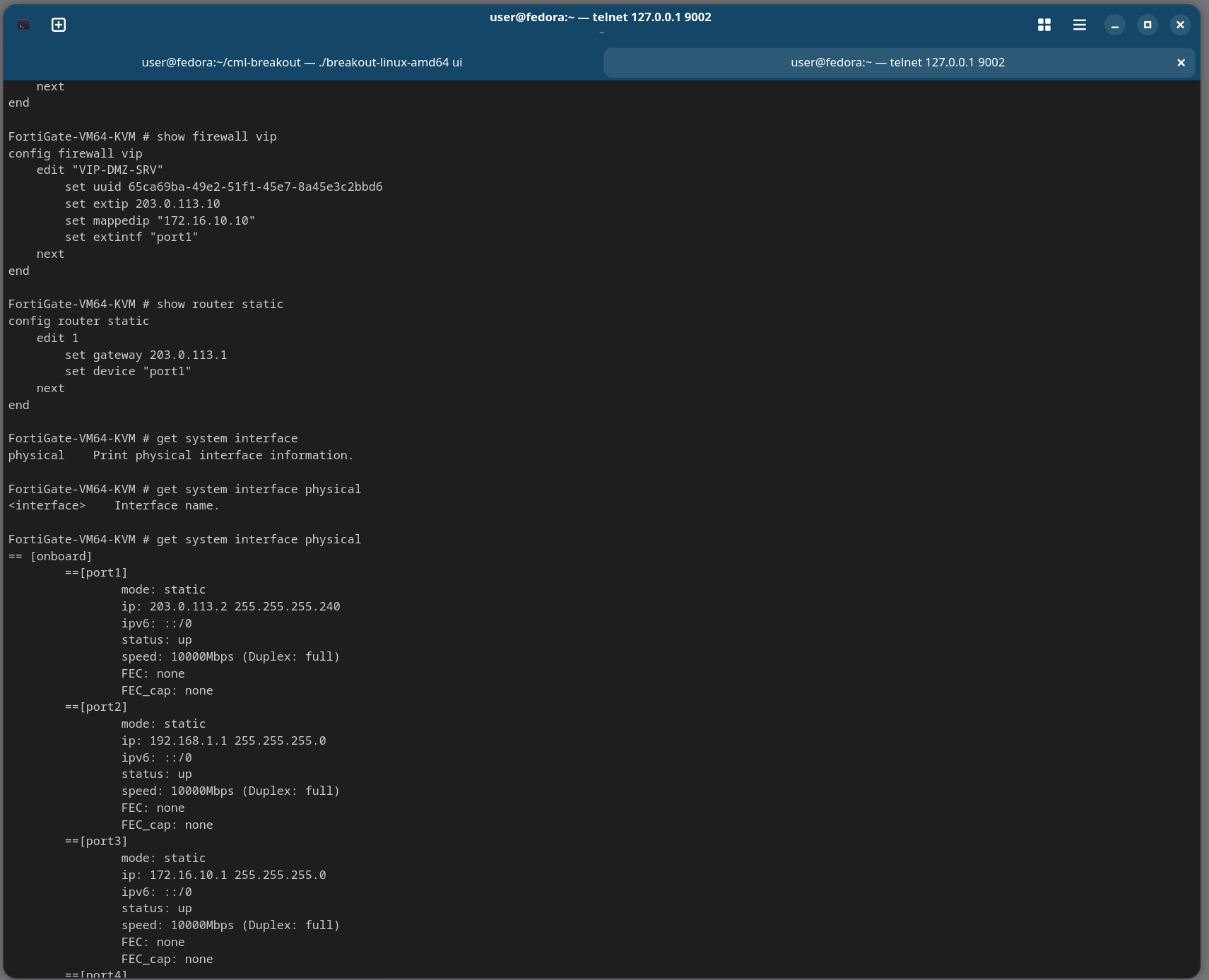
Verify: get system interface physical
EX-02 — Routing
Add the default route.
config router static
    edit 1
        set dst 0.0.0.0 0.0.0.0
        set gateway 203.0.113.1
        set device port1
    next
end
Verify: get router info routing-table all — should show S* default. Test: execute ping 8.8.8.8 (from FortiGate itself).
EX-03 — DNS
config system dns
    set primary 1.1.1.1
    set secondary 8.8.8.8
end
Test: execute nslookup name google.com will fail (no real DNS in lab) — that's fine, the config itself is the point.
EX-04 — Outbound Policy + NAT
Address objects:
config firewall address
    edit "INSIDE-NET"
        set subnet 192.168.1.0 255.255.255.0
    next
    edit "DMZ-NET"
        set subnet 172.16.10.0 255.255.255.0
    next
end
Policy:
config firewall policy
    edit 1
        set name "INSIDE-OUT"
        set srcintf "port2"
        set dstintf "port1"
        set srcaddr "INSIDE-NET"
        set dstaddr "all"
        set service "ALL"
        set action accept
        set nat enable
        set logtraffic all
        set schedule "always"
    next
end
Test from PC1: ping 8.8.8.8 should work. Verify on FGT: diagnose sys session filter src 192.168.1.10 then diagnose sys session list.
EX-05 — DMZ Outbound
Same shape as EX-04 — DMZ-NET source, port3 → port1, NAT enabled.
config firewall policy
    edit 2
        set name "DMZ-OUT"
        set srcintf "port3"
        set dstintf "port1"
        set srcaddr "DMZ-NET"
        set dstaddr "all"
        set service "ALL"
        set action accept
        set nat enable
        set schedule "always"
    next
end
Test from DMZ-SRV: ping 8.8.8.8.
EX-06 — Public Service (VIP / DNAT)
Two VIPs — one per port. (You can also use a single VIP with multiple port mappings on FortiOS 6.4+, but two is clearer.)
config firewall vip
    edit "VIP-WEB-80"
        set extip 203.0.113.10
        set mappedip "172.16.10.10"
        set extintf "port1"
        set portforward enable
        set extport 80
        set mappedport 80
    next
    edit "VIP-WEB-443"
        set extip 203.0.113.10
        set mappedip "172.16.10.10"
        set extintf "port1"
        set portforward enable
        set extport 443
        set mappedport 443
    next
end
Inbound policy — note NAT is disabled here, the VIP handles it:
config firewall policy
    edit 3
        set name "OUTSIDE-TO-WEB"
        set srcintf "port1"
        set dstintf "port3"
        set srcaddr "all"
        set dstaddr "VIP-WEB-80" "VIP-WEB-443"
        set service "HTTP" "HTTPS"
        set action accept
        set logtraffic all
        set schedule "always"
    next
end
Test from EXT-USER:
nc -zv 203.0.113.10 80
nc -zv 203.0.113.10 443
EX-07 — Inside to DMZ
Inside users reach the DMZ server by its real IP.
config firewall policy
    edit 4
        set name "INSIDE-TO-DMZ"
        set srcintf "port2"
        set dstintf "port3"
        set srcaddr "INSIDE-NET"
        set dstaddr "DMZ-NET"
        set service "HTTP" "HTTPS"
        set action accept
        set schedule "always"
    next
end
Test from PC1: nc -zv 172.16.10.10 80.
EX-08 — Deny + Log
Explicit deny for telnet inside→dmz, with logging.
config firewall policy
    edit 5
        set name "DENY-TELNET-DMZ"
        set srcintf "port2"
        set dstintf "port3"
        set srcaddr "INSIDE-NET"
        set dstaddr "DMZ-NET"
        set service "TELNET"
        set action deny
        set logtraffic all
        set schedule "always"
    next
end
Move it above INSIDE-TO-DMZ if needed (FortiOS evaluates top-down by sequence). Test from PC1: nc -zv 172.16.10.10 23 (should fail). Check:
execute log filter category 0
execute log display
EX-09 — Debug Flow (the killer tool)
Equivalent of Cisco packet-tracer. Trace a ping from PC1.
diagnose debug reset
diagnose debug flow filter saddr 192.168.1.10
diagnose debug flow filter daddr 8.8.8.8
diagnose debug flow show function-name enable
diagnose debug flow trace start 10
diagnose debug enable

# Now: from PC1, ping 8.8.8.8

diagnose debug disable
diagnose debug flow trace stop
Read every line — route lookup, policy match, NAT, forward path. This is what you'll use to debug real problems.
EX-10 — Sniffer
In-box tcpdump.
diagnose sniffer packet any 'host 8.8.8.8 and icmp' 4 0 aGenerate ping from PC1 — watch frames enter port2 with src 192.168.1.10, leave port1 with src 203.0.113.2 (the NATed source).
Cleanup before walking away
diagnose debug disable
diagnose debug reset
diagnose debug flow trace stop
diagnose debug flow filter clear
diagnose sys session filter clear
Stretch Exercises
- SSH key auth for admin (
config system admin / edit admin / set ssh-public-key1 ...) - Second VIP for SSH-to-DMZ on non-standard port:
203.0.113.10:2222 → 172.16.10.10:22 - ECMP defaults with port4 to a second INET router (you'd add it)
- Logging to disk if VM has the data volume —
config log disk setting / set status enable - SSL VPN on port1 — practice the config even without a client to test with
Verification Cheatsheet
| What | Command |
|---|---|
| Interface status | get system interface physical |
| Routing table | get router info routing-table all |
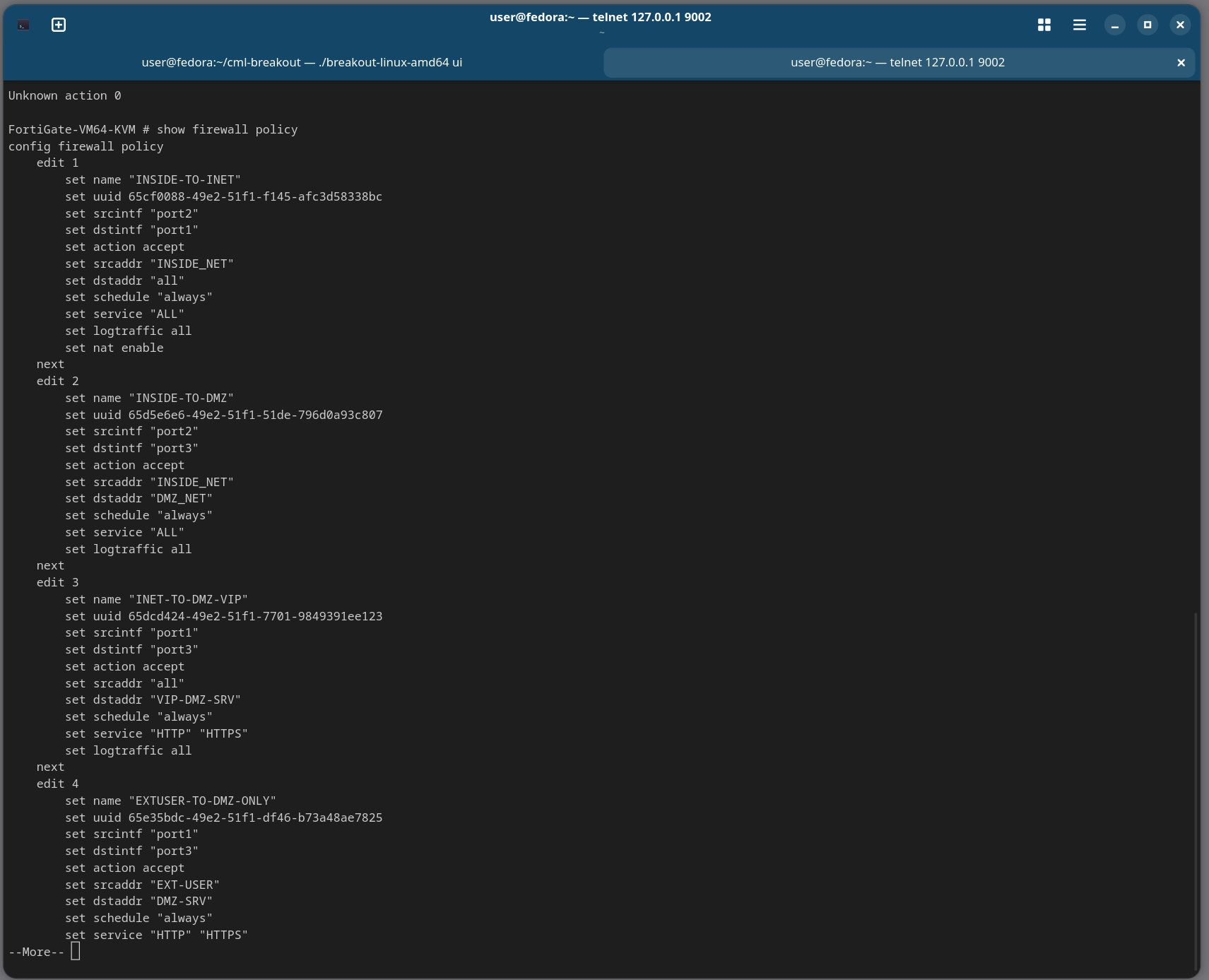
| Policies | show firewall policy |
| VIPs | show firewall vip |
| Active sessions | diagnose sys session list (filter first!) |
| Packet trace | diagnose debug flow ... |
| In-box tcpdump | diagnose sniffer packet ... |
| Source-aware ping | execute ping-options source X then execute ping Y |
| Logs | execute log filter ... then execute log display |
See fortigate-verification.md for the full command reference.
Lab Walkthrough Screenshots
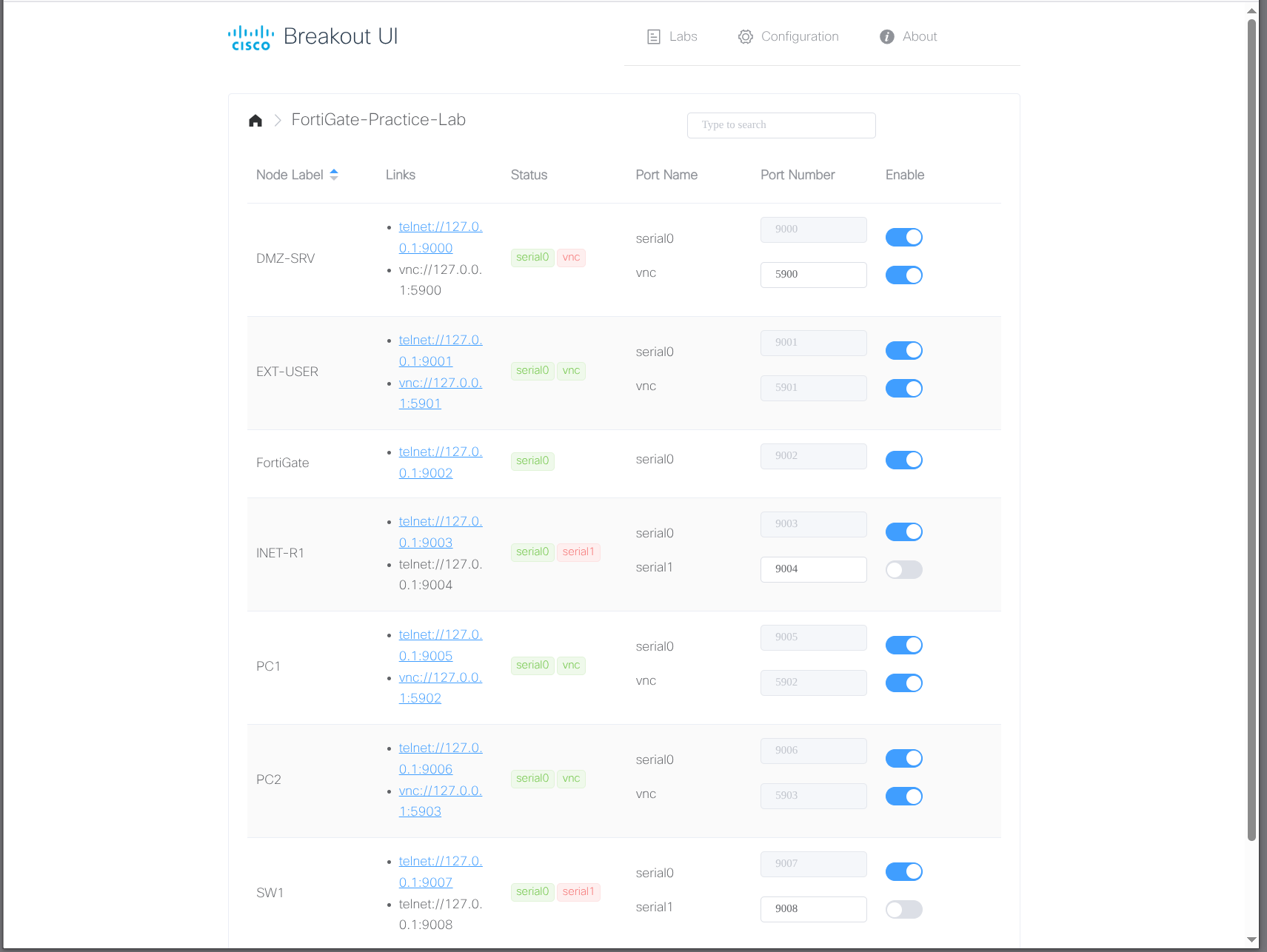
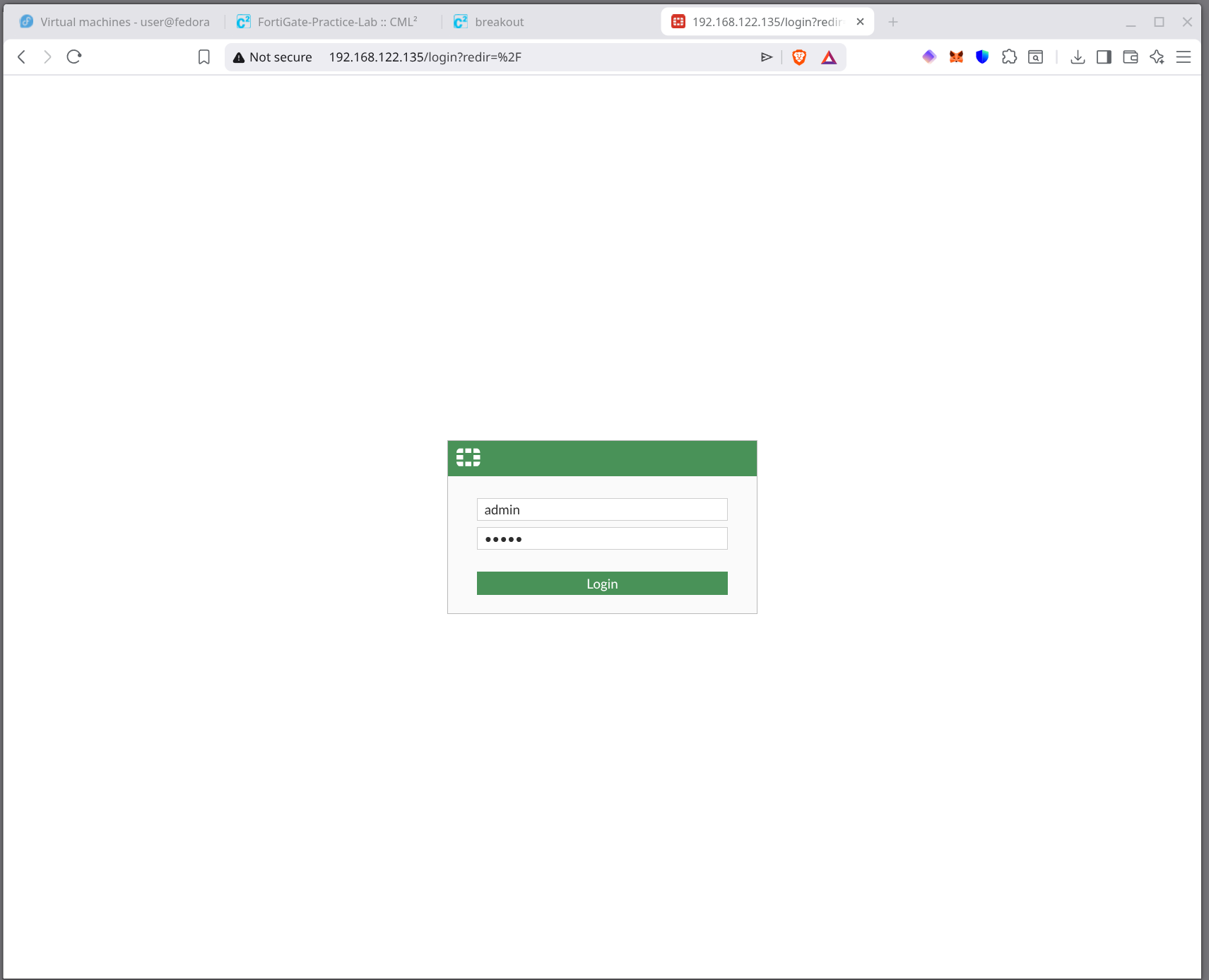
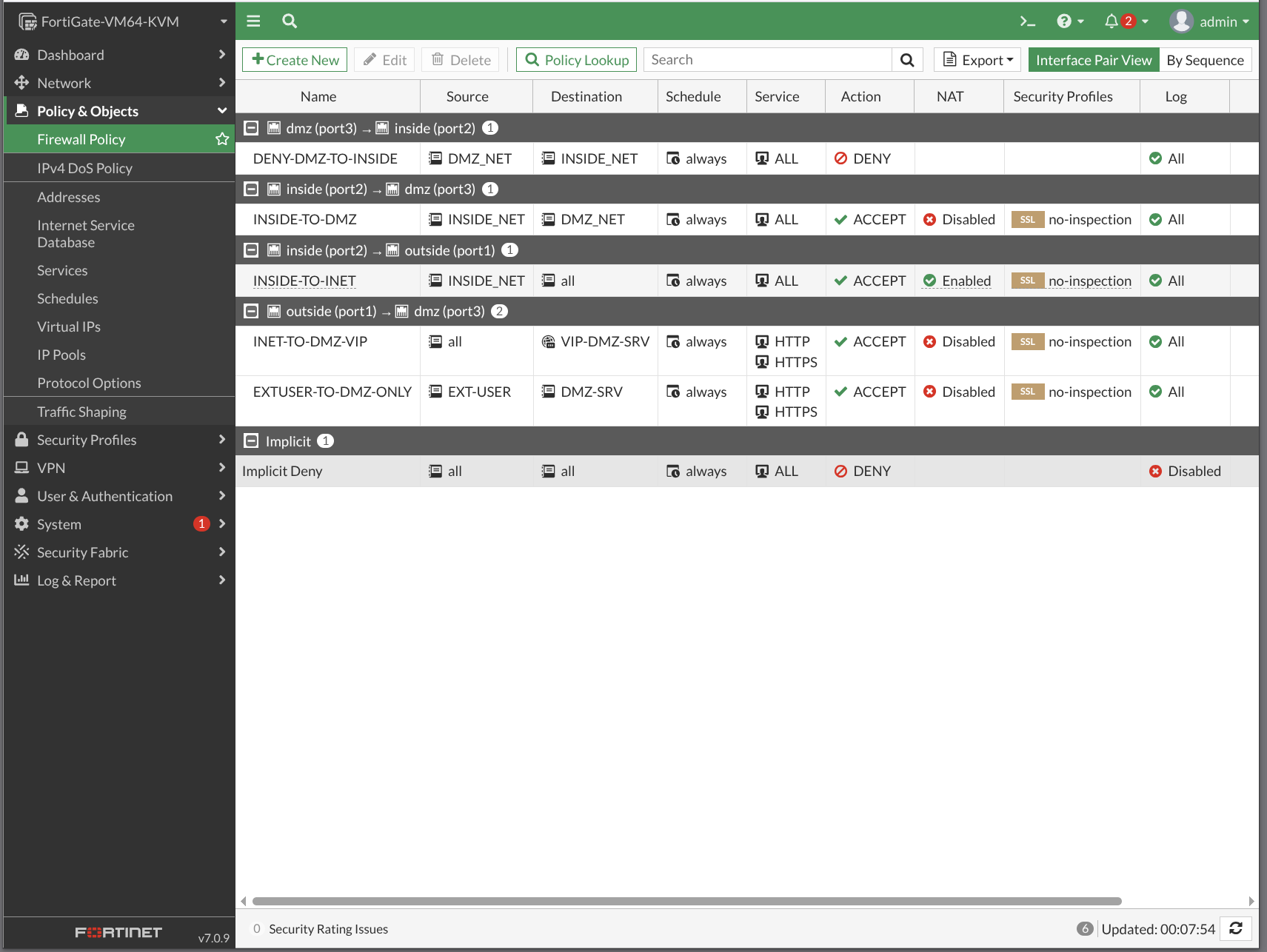
The lab in CML — built from Fortigate-lab.yaml, configured via the exercises above, verified through both the CLI and the GUI.
Solution / Reference Configuration
The full reference configuration with the policies, VIPs, and verification steps lives in config.html. Topology source: topology.html.